
Throughout the WATS application, you can filter results based on predefined Product Groups.
Product Groups are created and managed under Control Panel → Products → Product Groups.
A Product Group consists of one or more filters that group multiple part numbers together.
This allows users to analyze data, reports, and statistics across related products as a single logical group.
Adding Product Groups
- Click Add.
- Enter a Name for the product group.
- Optionally, enter a Description.
- Select Is public if the product group should be visible to other users.
- New product groups are private by default (Is public = False).
- Only authorized users can create public product groups.
- To restrict access to specific users, the product group must be marked as public.
- Click Save.
Is public: Indicates whether the product group is visible to other users.
Product Group Filters
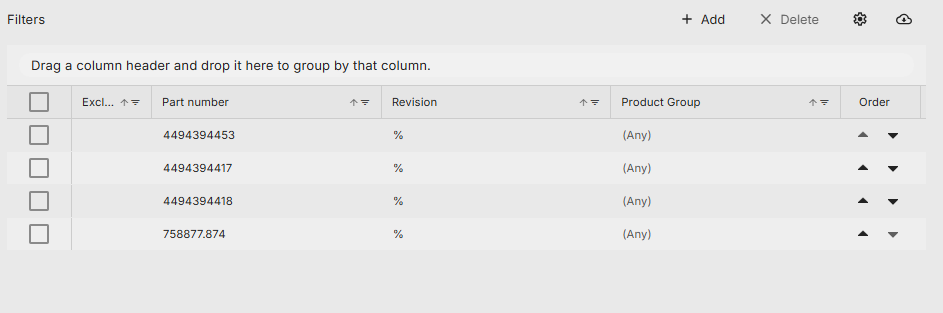
Filters columns
Exclude
By selecting the option Exclude, the specified filter will exclude, rather than include the parts and revision matching the filter.
Part number
The filter will match the part numbers with the value of this field. Wildcard % representing any characters is allowed.
Revision
The filter will match revisions with the value of this field. Wildcard % representing any characters is allowed.
Product group
The filter parameters will be matched with products matching the specified group.
Order
When you have multiple filters assigned to a product group, the order of these filters can be changed by clicking the arrow buttons.
Add a new filter
To add a filter to a Product Group:
Select the desired Product Group from the list.
The active filters for the selected group will appear in the panel to the right.
Click + Add in the Filters grid toolbar.
Specify one of the following:
Part Number and Revision, or
An existing Product Group to use as a filter reference.
(Optional) Enable Exclude by clicking the cell to exclude rather than include the matching parts or revisions.
Click Done to save your changes.
Unassociated part numbers
By clicking the tab Unassociated part numbers, you can see a list off all part numbers imported to WATS with no association to any product group. The list also contains a column last seen, prompting the date the product number was last imported to WATS.
From this tab there is the option to associate a selected part number to one or more product groups. This can be done through the Associate with product groups menu described below.
Associate with product groups menu
Associating a part number with one or more product groups will cause the part number to be added as a product group filter with chosen part number and revision set as %.
Some menu options:
Keep selection after confirming
Keeps the chosen product groups checked even after associating chosen part number with one or more product groups.
Clear
Clears the entire selection while keeping the menu open.
Cancel
Clears the entire selection and closes the menu.
Associate a Part Number with a Product Group
To associate a part number with a Product Group:
Hover over a part number in the Part Number column.
Click the button that appears when hovering (as shown in the illustration above).
In the dialog, select one or more Product Groups to associate with the part number.
Click Confirm to save your selection.
The selected part number will now be added as one of the filters for the chosen Product Group and will be removed from the Unassociated Part Numbers list.
Comments
0 comments
Please sign in to leave a comment.